


Working from home is easy until the power goes out in the middle of a meeting.
Your laptop might still have plenty of battery, but your Starlink, Wi-Fi router, monitors, and other equipment can shut down immediately. That is why reliable backup power, a solar power generator, a whole home power generator, or portable backup power can be important for people who work from home.
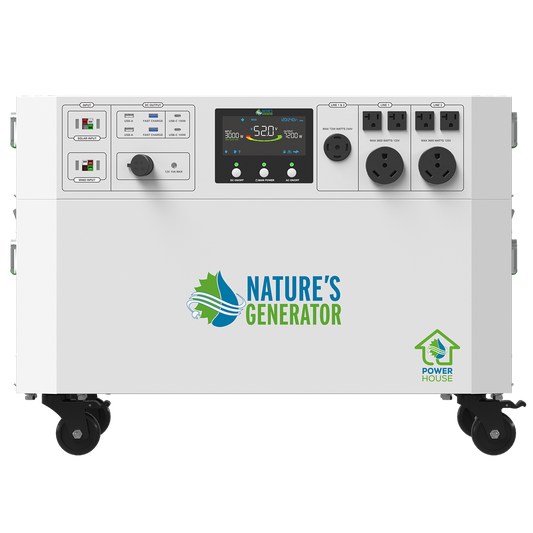
The Nature’s Generator Powerhouse Gen 2 is built for larger home backup needs. It provides up to 7,200W of continuous output, 4,800Wh of battery capacity, 120V/240V split-phase power, and UPS functionality with a listed 10ms switchover.
So, how do you keep Starlink, mesh Wi-Fi, a computer, and dual monitors running when the grid goes down? This guide explains how much power a typical WFH setup needs, how to size your backup system, and when a whole-home solution makes sense.
How much electricity does Starlink use in a home office?
A work-from-home setup can use more electricity than expected because several devices need to stay powered at the same time.
A typical setup could include:
-
Starlink
-
Wi-Fi router and mesh nodes
-
Laptop or desktop computer
-
Two monitors
-
Webcam
-
Desk lamp
-
Phone charger
-
Speakers and USB accessories
Starlink's current specifications list average consumption of around 50–75W for Standard Actuated, 75–100W for Standard 4 and related models, and 20–40W for Starlink Mini. Power usage may change depending on how and when you use it.
The important point is that Starlink is only one part of the load.
Your computer and monitors can account for a much larger share, especially if you're using a desktop workstation. A laptop with two efficient monitors may have very different power requirements from a gaming PC with high-resolution displays.
That is why you should calculate the combined load of your entire workspace, not just Starlink.
Why should Starlink and mesh Wi-Fi stay powered during an outage?
Keeping your computer running is not enough if your internet connection goes down.
Remote workers often depend on cloud applications, video meetings, VPNs, VoIP calls, online file storage, and browser-based work platforms. Without internet access, even a fully charged laptop may not be very useful.
Starlink's system includes the dish, power supply, cables, and router, all of which contribute to its overall power requirements.
Your mesh network also needs electricity. Starlink's current router specifications support compatible Starlink mesh nodes, helping extend Wi-Fi coverage around the home.
A resilient WFH setup therefore looks like this:
Backup power → Starlink → router/mesh network → computer → monitors
If any link fails, your ability to work can be interrupted.
For remote workers, keeping the network online should be treated as a priority rather than an afterthought.
What should you power first during a WFH outage?
Not every device needs the same priority.
Start with the equipment that directly affects your ability to work.
1. Starlink and networking equipment
Keep your internet connection online first. If possible, power your main router and the mesh nodes needed to reach your office.
2. Your computer
A laptop gives you an extra layer of protection because its built-in battery can provide additional runtime. Desktop computers depend much more heavily on your backup system.
3. Your monitors
Dual monitors are useful, especially for multitasking, but they are less essential than your internet connection and computer.
During a longer outage, you could switch from two monitors to one to reduce your power draw.
4. Accessories
Webcams, speakers, desk lamps, phone chargers, and other accessories can come afterward.
This priority system helps you stretch available battery power when an outage lasts longer than expected.
Is the Powerhouse Gen 2 powerful enough for a home office?
For many WFH setups, the answer is yes.
The Powerhouse Gen 2 delivers up to 7,200W of continuous output and 4,800Wh of battery storage. It also provides 120V/240V split-phase power and uses a pure sine wave inverter.
That gives it considerably more output than many small battery power stations designed primarily for personal electronics.
Before we dive in, let’s look at how power and energy differ.
-
Watts tell you how much equipment the system can run at once.
-
Watt-hours tell you how much stored energy is available.
-
Runtime depends on your actual load and system conditions.
For example, a WFH setup drawing 300W will use stored energy much more slowly than one drawing 1,000W.
Actual runtime will also vary because of conversion losses and changing device loads. Nature’s Generator provides runtime information as an estimate rather than a guarantee.
What does 10ms UPS switching mean for remote work?
UPS functionality helps keep equipment powered when the source changes from grid electricity to battery power.
The Powerhouse Gen 2 lists 10ms UPS functionality for seamless power during outages.
Why does that matter?
A long power interruption can cause computers, monitors, routers, and other electronics to restart. A fast transition can help reduce that interruption and keep equipment running.
For remote workers, this can be especially useful during short outages or unexpected power flickers.
However, UPS switching and battery runtime are two different things.
UPS switching handles the transition. Battery capacity handles the duration.
You need both when your goal is to stay online throughout an outage.
Can the Powerhouse Gen 2 run Starlink, Wi-Fi, and dual monitors together?
It can, provided your total connected load stays within the system's limits.
Think about your complete workstation:
The exact load depends on the equipment.
A laptop-based setup may use significantly less energy than a desktop workstation with two large monitors and high-performance components.
For accurate planning, check the wattage listed on each device or measure your equipment with a plug-in power meter.
Then add the loads together.
This gives you a much clearer picture of how much backup power you need than using generic estimates.
When does a whole-home system make more sense than a small battery?
A small portable power station can be enough for a laptop, phone, and a few low-power devices.
But your needs change when you want to keep working while also protecting essential equipment around the house.
The Powerhouse Gen 2 is made to provide backup power for your whole home.
That means you can think beyond your desk.
During an outage, you may want to keep:
-
Starlink and Wi-Fi running
-
Your computer and monitors powered
-
The refrigerator operating
-
Essential lighting on
-
Selected household appliances available
In this situation, buying a system only for your office may not provide enough flexibility.
The better question is: What do you need to keep running during an outage?
If the answer includes important household loads as well as your office, a whole-home system may be the more practical approach.
Can the Powerhouse Gen 2 recharge from solar during a long outage?
Yes.
The Powerhouse Gen 2 supports multiple charging options, including up to 2,000W of solar input and up to 1,000W of wind charging, as well as AC charging.
Solar charging can be especially useful during longer outages because you can replenish some stored energy during daylight hours rather than depending entirely on the grid.
A simple outage plan could look like this:
Morning: Use stored battery power for your office.
Midday: Use solar energy to help recharge the battery.
Afternoon: Continue working while managing your total load.
Evening: Switch off nonessential devices to preserve remaining battery capacity.
Nature’s Generator also offers a Powerhouse Gen 2 with solar panels, giving homeowners a ready-made option for building a solar-supported backup system.
Can the Powerhouse Gen 2 be expanded later?
Yes. Expandability can be important if your energy needs are likely to grow.
The Powerhouse Gen 2 starts with a 4,800Wh battery, but Nature’s Generator offers expansion options including Power Pods and additional Powerhouse units. The company states that up to three Powerhouse Gen 2 units can be combined for up to 21,600W of output.
That means you can start with the setup you need now and expand later.
For example, your initial backup plan might cover:
WFH office + Starlink + refrigerator
Later, you could need:
WFH office + Starlink + refrigerator + lighting + additional household loads
A scalable system can help accommodate those changing requirements without replacing your entire backup setup.
What do customers say about the Powerhouse Gen 2?
Customer feedback can help fill in the gaps that product specifications cannot.
Nature’s Generator features customer comments praising the Powerhouse for its build quality, setup process, and ability to expand over time. One customer highlighted the unit’s quality and described the setup and expansion process positively.
Customer feedback is particularly useful when you're comparing systems because backup power is something you need to use in real-world conditions.
For a WFH user, that means thinking about more than battery capacity. Setup, charging options, expansion, and day-to-day usability all matter.
The best backup system is one you can understand, test, and use confidently before an outage happens.
What is the best backup setup for a zero-downtime home office?
Your ideal setup depends on how much equipment you need and how long you need to work.
Light WFH setup
For basic remote work:
Starlink + router + laptop + one monitor
This setup keeps power consumption relatively low while protecting your most important equipment.
Dual-monitor setup
For heavier daily workloads:
Starlink + mesh Wi-Fi + computer + two monitors
This is where accurately measuring your total power draw becomes especially important.
Whole-home WFH setup
For households that want office and home backup:
Starlink + mesh Wi-Fi + computer + monitors + refrigerator + lights + selected appliances
This is where a higher-output system such as the Powerhouse Gen 2 becomes more relevant.
Explore the Nature’s Generator range to compare backup options based on your home's energy needs.
How should you test your WFH backup system?
Don't wait for an actual blackout to find out whether your setup works.
Test it before you need it.
Start by identifying your essential equipment. Then connect your Starlink, networking equipment, computer, monitors, and other critical devices.
Check that:
-
Starlink reconnects normally
-
Your mesh network remains available
-
Your computer stays powered
-
Your monitors continue working
-
Your backup system can handle the combined load
Then watch how quickly your battery level drops during normal work.
You can also create a simple power-saving plan.
For example:
100%–50%: Use your normal dual-monitor setup.
50%–25%: Switch off nonessential accessories.
Below 25%: Use one monitor and prioritize Starlink, networking, and your computer.
This gives you a practical way to extend your working time during a longer outage.
What should you look for before buying backup power for WFH?
Before choosing a system, answer five basic questions:
How much power does my entire setup use?
Include Starlink, networking equipment, computer, monitors, and accessories.
How long do I need to stay online?
A short outage and an all-day outage require very different amounts of stored energy.
Do I only need to power my office?
For a few small devices, portable backup power may be enough.
Do I also want to protect my home?
If you need to run appliances and other essential loads, look at higher-output whole-home systems.
Can I recharge during a long outage?
Solar charging can help restore battery capacity without relying entirely on the grid.
How do you build a zero-downtime WFH station?
A dependable WFH backup setup needs to protect more than your laptop. Starlink, Wi-Fi, your computer, and your monitors all work together, so your backup system should be sized around the complete setup.
Nature’s Generator gives homeowners a scalable way to build that backup system.
Start by calculating your actual power needs, deciding how long you need to stay online, and choosing enough capacity for both your current setup and future needs.


